

Habit Tracker is a productivity tool that helps you track your daily results. The single biggest barrier to developing new habits is lack of following through with them. The Habit Tracker app ensures that your habits are visible and makes it easy to mark your progress. There are many self-help productivity books on the market, and they all agree that doing something consistently will help you develop it into a habit.
Habit Tracker is an easy-to-use application that runs on any web browser (PC, tablet, mobile), so you always have access to it. It makes completing your daily habits easy and fun. You can use the multiple report to see your progress on a daily, weekly, and monthly basis.
Getting Started
If you launch the Habit Tracker application for the first time, you will start with a blank slate.
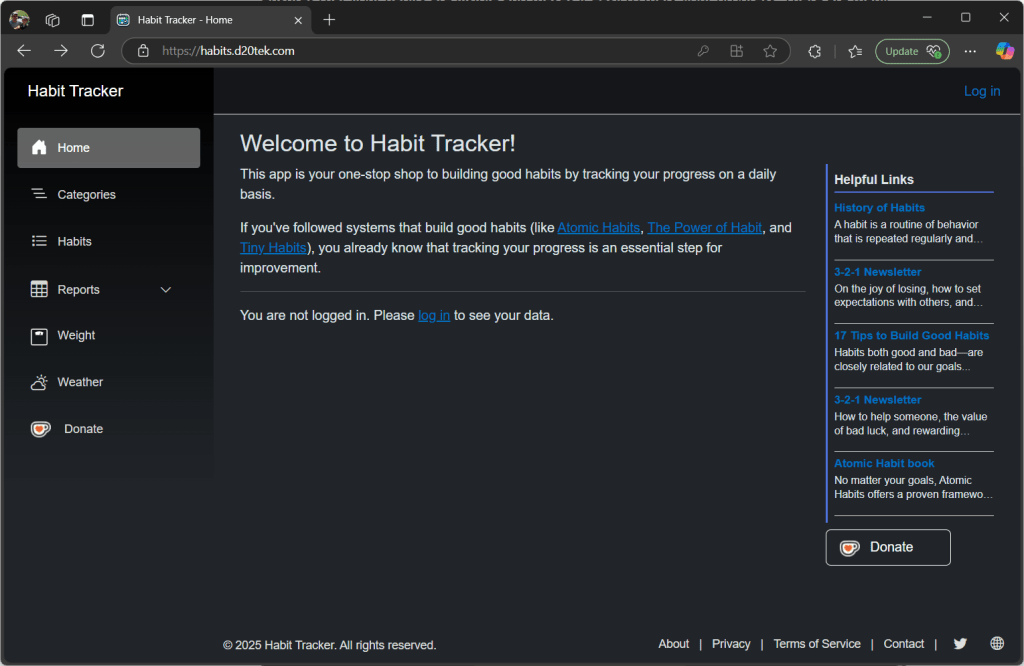
You must create an account and log into the app, by clicking the Log in link on the screen. This brings you to our account provider where you can either create a new account or log in with your existing Google account.
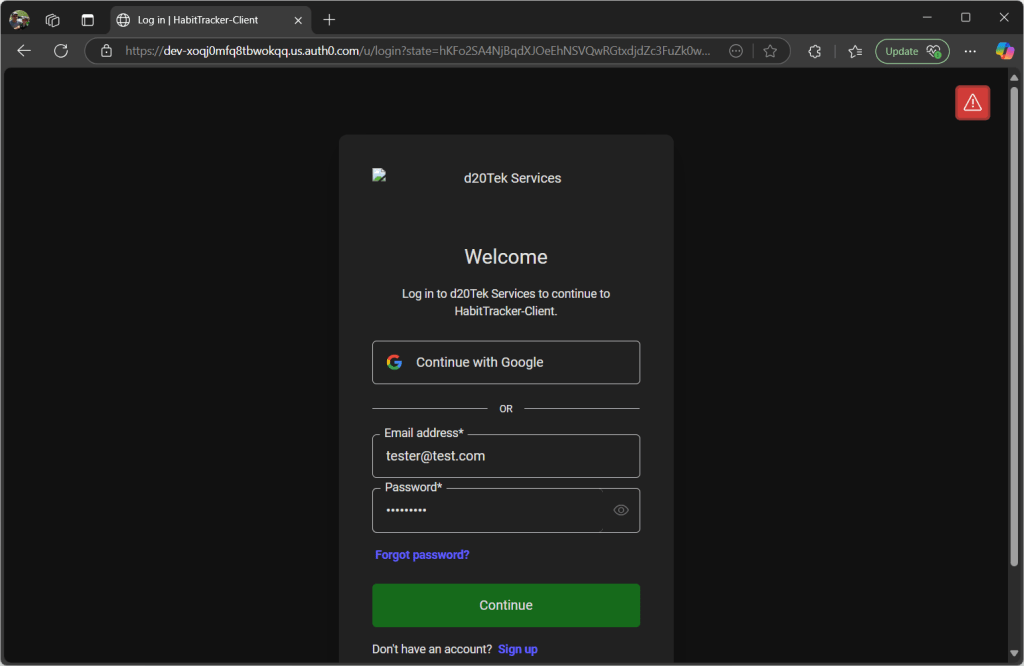
Once you’ve created a new account or signed in with your existing account, you can start use the Habit Tracker app.

Let’s do a quick tour of the application layout:
- The left panel is the navigation panel which has links to the different features of this app. Clicking on any button will take you to the list page for that feature. On a mobile device, the navigation bar is collapsed at the top of the screen.
- The center area is the main area. On the home page, it will list your habits and the progress you are making on them today.
- The right panel contains a list of helpful links to content about how to develop and manage your habits. There are many great resources and they update periodically.
- The bottom footer section just contains copyright text, links to special pages, and links to our social media.
1. Setup Categories
First, let’s create some categories for our habits. This app is completely customable, so you can categorize your habits however you would like. Once you get to the Add Category page, you can fill in a category:

A category can be any simple name that you want. Fill in the Name field and press the Create button. Add a few for your use… (no one else will see your categories).

2. Add Your Habits
Click the Habits button in the navigation panel. Then Add your first habit.
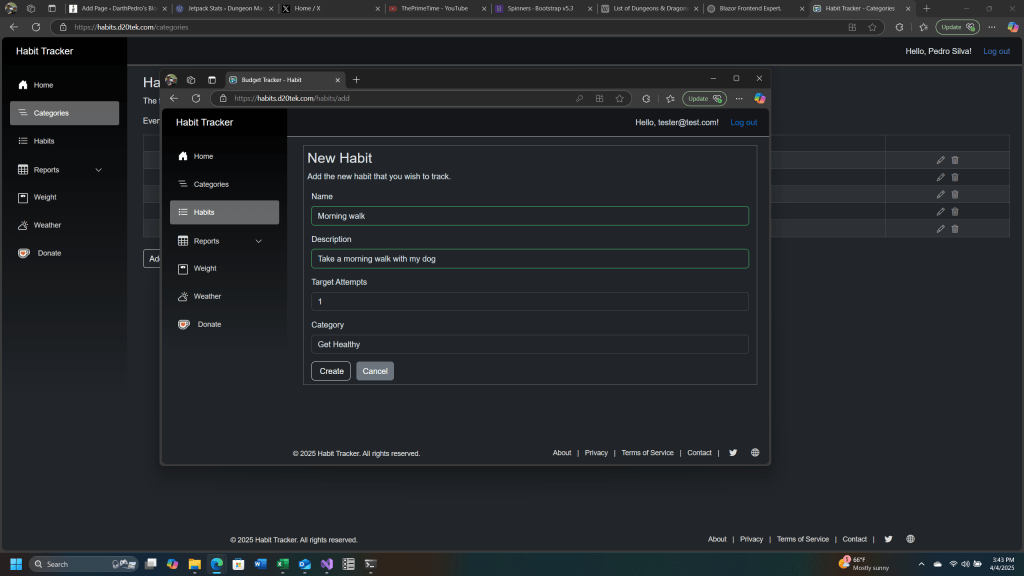
To create a habit:
- Enter a short name to easily recognize the habit.
- Optionally enter a description of what the habit means, when you are going to do it, etc.
- Decide how many times per day you will do this habit… if it’s a single time, just leave the value as one.
- Select the appropriate category from the dropdown selection list.
- Click the Create button.
Now, go through and enter all of the habits that you are trying to improve or start.
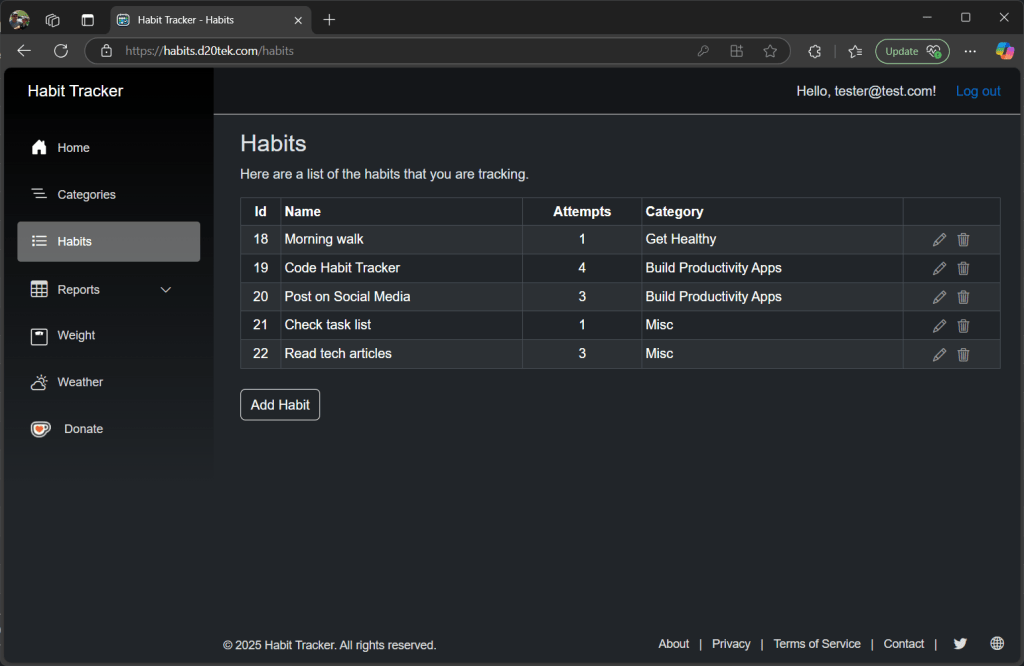
3. Track Your Habits
Now that your setup is complete, you can easily track your habits on a daily basis. If you return to the home page, it will now be filled with your habits and their current completion state.

You can mark the habit as done with the button on the left. It will increment how many times you accomplished it today. Each click increments it by one. When the number completed reached the target for that habit, you will get a green checkmark on the last column. That signifies that you have reached your goal for the day. But you can continue to do that habit and increment beyond the target… let’s all overachieve.
If you made a mistake on a habit, you can unmark that habit as complete. That will decrement the completion number by 1 (per click). But it will not go below 0. This gives you the ultimate flexibility to change to status.
Now work on your habits, mark your progress in the app, and collect all of those green checkmarks.
The Habit Tracker app also works seamlessly on your mobile device when you log in with the same account:

4. Habit Reports
If you want to see your progress over time, you can click the Reports tab in the navigation panel. That will open up a submenu with three different reports:
A – Today
The report for today looks similar to the table on the home page. And you can make changes to your status directly with the mark and unmark buttons for each habit.

B – Weekly
The weekly report shows each habit in a table and a column for the completion status of the past seven days.

If you hover over the checkmark, it will show you the number of completions per day as well. If you did not achieve your goal, you will see the number of completions / target.
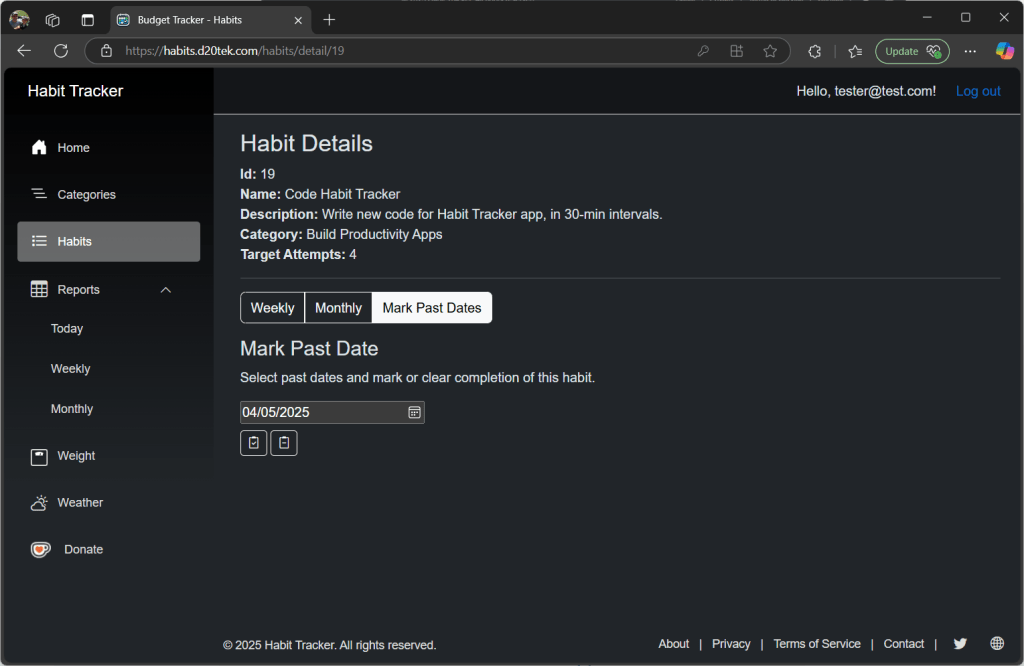
If you wish to update habits for older tasks, click the link icon to the right of the Habit Name. This will navigate to the Habit details page, which has mark/unmark operations for the last week or any past dates.

C – Monthly
The weekly report shows each habit in a table and a calendar view for the completion status of the past 30 days.
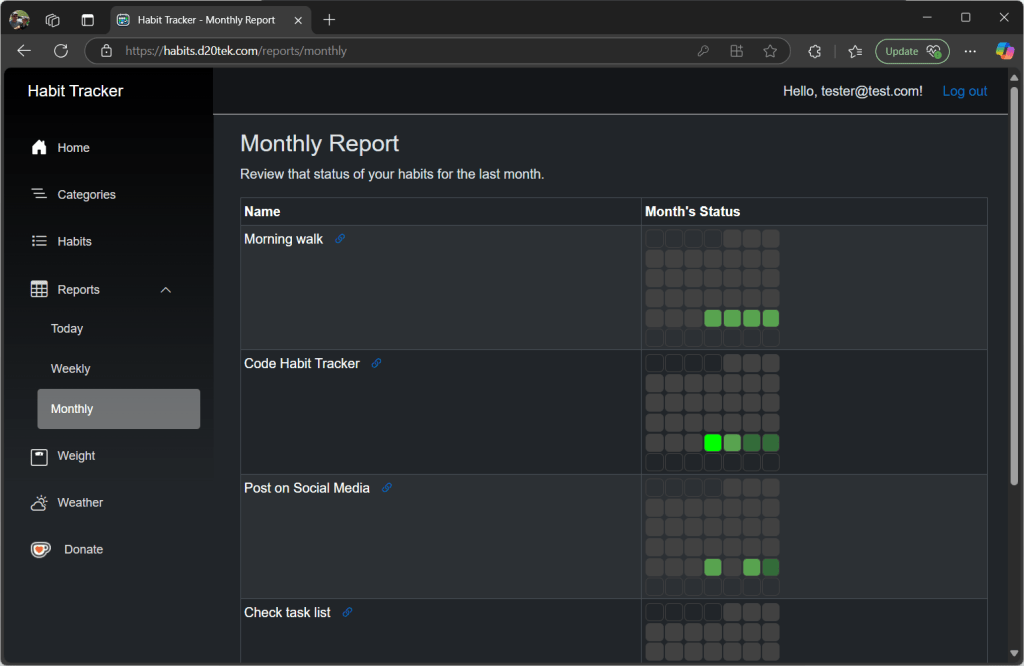
For each habit, there is a color coding per day. Gray means that habit was not started (if the target attempts is greater than one). Muted green means the habit was done but did not reach its target for the day. Normal green means the habit was completed the expected number of times. And, bright lime green means that the habit was done more than the expected amount. This color coding lets you quickly see how you’ve done over the month.
If you hover over the daily box, it will show you the number of completions per day. You will see the number of completions / target in a tooltip.
5. Track Weight Loss
Since many of us have healthy living and weight loss as habits, we add a simple weight tracker to the application as well. You can use it if you’d like, but don’t have to (if that’s not one of your habit goals).
Press on the Weight button in the navigation panel, and you will see the following screen.
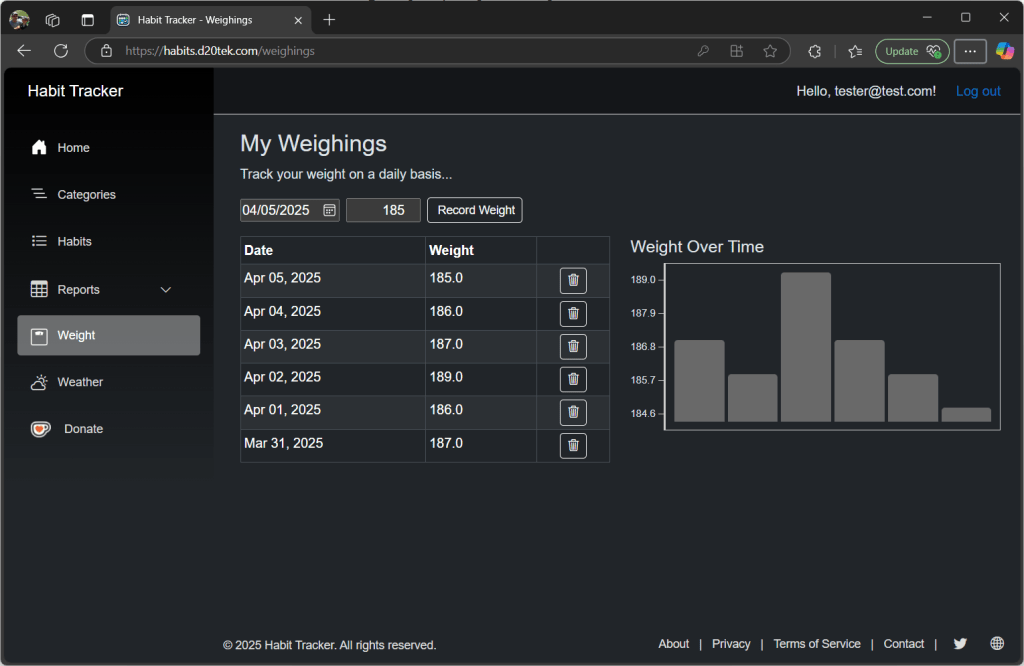
You can add new weighings by selecting a date, entering the weight, and pressing the Record Weight button. This will add an entry into the list and show that item in the weight graph. This is a great way to monitor your progress.
If you select a date that already exists in the list, then it will update the weight for that item and not create a new record. This lets you update your weight easily throughout the day.
Conclusion
The Habit Tracker app is still in its Beta version, so feel free to try it out and provide some feedback to improve the experience. The app is free to use. It is currently running on free hosting services, so performance may be slower with high demand. As we get donations from users, we will upgrade the hosting services to provide better performance for a larger user base.
This application was fun to build, and we hope that you have fun using it. And get started on changing your habits!!
 DarthPedro's Blog