
In Visual Studio 2022, the Code Cleanup Profiles feature is a great way to automate code formatting and clean-up operations using predefined or custom rules. By using cleanup profiles, you can make all of the changes in one operation and free yourself from updating lots of code files manually. Here’s a detailed explanation of how it works, how to set it up, and what happens when you use Ctrl+K, Ctrl+E:
What Is Code Cleanup in Visual Studio?
Code Cleanup is a feature in Visual Studio that allows you to apply a set of code style and formatting rules across your C# files. This includes:
- Removing unused
usingdirectives - Formatting the code according to the rules in
.editorconfig - Applying file-scoped namespaces
- Enforcing spacing, braces, naming conventions, and more
Why Use Code Cleanup Profiles?
Instead of manually formatting code or fixing warnings, you can define a profile that bundles multiple cleanup tasks together. Once a profile is configured, you can run it instantly using the shortcut:
Ctrl + K, Ctrl + E
Think of it as a “magic wand” that tidies your code in one action.
How to Use Code Cleanup Profiles in Visual Studio 2022
Step 1: Open Code Cleanup Settings
- Go to the top menu bar and click:
Tools > Options > Text Editor > Code Cleanup
Step 2: Configure Profiles
You’ll see two profiles by default:
- Profile 1
- Profile 2

Each profile can be configured with one or more code cleanup actions.
Click on the “Configure Code Cleanup” link to customize the actions.
Step 3: Choose Actions for Your Profile
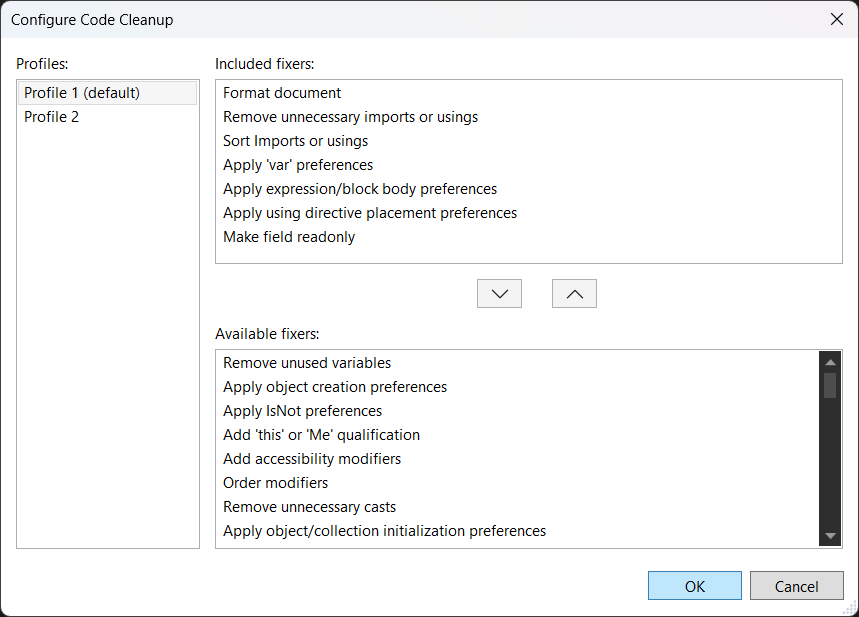
You can include actions like:
- ✅ Remove unnecessary usings
- ✅ Sort imports or usings
- ✅ Format document
- ✅ Apply file-scoped namespace style
- ✅ Fix whitespace
- ✅ Apply naming conventions
- ✅ Make private fields readonly
- ✅ Add accessibility modifiers
You just add and remove the task that you want.
Step 4: Save the Profile
Once configured, press OK to save your Code Cleanup Profile.
How to Run Code Cleanup
- Ctrl + K, Ctrl + E runs the default profile (usually Profile 1).
- You can also click the
Analyze > Code Cleanupmenu item and choose between Profile 1 or Profile 2.

Example Use Case
Let’s say your Code Cleanup Profile 1 is configured to:
- Remove unused
usingdirectives - Format the code using
.editorconfig - Convert to file-scoped namespaces
Now you press Ctrl + K, Ctrl + E.
Instantly:
- All unnecessary
usingstatements are deleted. - Indentation, spacing, and braces are fixed.
- Namespaces are converted from block-style to file-scoped style (if enabled).
No manual fixing. No context switching.
Additional Tip: Use .editorconfig
The Code Cleanup engine respects rules defined in .editorconfig. So, if you define formatting rules like indentation size, naming conventions, or how to order using statements in .editorconfig, Code Cleanup will honor those.
Conclusion
| Feature | Description |
|---|---|
| Code Cleanup Profiles | Collections of code-fix rules that can be applied in one go |
| Shortcut | Ctrl + K, Ctrl + E runs Profile 1 |
| Customization | Done via Tools > Options > Text Editor > C# > Code Style > Code Cleanup |
| Benefit | Saves time, ensures consistency, enforces coding standards |
Code cleanup profiles are a great tool for automating the normal code formatting that you typically make in your source code. By setting up the profile, you can run the action quickly on all files to ensure consistency in your codebase. Doing this prior to submitting you pull request will also get rid of all of the comments related to code consistency, so you can push features more quickly.
 DarthPedro's Blog