
The next app that we will look at is the JSON to CSV Converter, which allows users to enter text in a simplified JSON format and converts it into a comma-separated value (CSV) format. To map easily to the flat CSV structure, our JSON input won’t deeply support nested objects. This app-idea has more complex requirements, so we will cover this application in 3 parts:
- In part 1 (this article), we will focus on a basic conversion functionality to allow users to type in JSON text and convert it to CSV format.
- In part 2, we will add functionality to copy the converted text to the clipboard, and load the JSON input from a local file.
- In part 3, we will add functionality to save the converted text as a local CSV file.
In this article, we will use System.Text.Json to parse the input JSON text into a JsonDocument, including handling errors in JSON formats. Then, we will use a valid JsonDocument structure to enumerate and build the corresponding CSV form of the input.
We will add this app as a new page to the existing Blazor.AppIdeas.Converters app (rather than creating a separate full project). You can find the source for the Blazor.AppIdeas.Converters on GitHub. And the running sample of the Blazor app online.
We will start by loading Blazor.AppIdeas.Converters solution (created in App-Idea 1: Bin2Dec) into Visual Studio.
Model Class
We will start with the TextConverter model class. It will encapsulate our ability to perform various text conversions. The first one being to convert JSON text into CSV text format. Let’s create the TextConverter class in the Blazor.AppIdeas.Converters project and Models folder.
using System;
using System.Linq;
using System.Text;
using System.Text.Json;

namespace Blazor.AppIdeas.Converters.Models
{
    public class TextConverter
    {
        public TextConverter(string text)
        {
            SourceText = text ?? throw new ArgumentNullException(nameof(text));
        }

        public string SourceText { get; }

        public string JsonToCsv()
        {
            if (string.IsNullOrEmpty(SourceText)) return string.Empty;

            var result = new StringBuilder();
            var element = GetJsonRootArray();

            result.AppendLine(ParseJsonPropertyNames(element));

            result.Append(ParseJsonElementArray(element));

            return result.ToString();
        }

        private JsonElement GetJsonRootArray()
        {
            var doc = JsonDocument.Parse(SourceText);
            if (doc.RootElement.ValueKind == JsonValueKind.Object)
            {
                doc = JsonDocument.Parse($"[{SourceText}]");
            }

            if (doc.RootElement.ValueKind != JsonValueKind.Array)
            {
                throw new NotSupportedException("Unsupported JSON root type.");
            }

            return doc.RootElement;
        }

        private string ParseJsonPropertyNames(JsonElement root)
        {
            var result = new StringBuilder();
            var firstElement = root.EnumerateArray().First();

            foreach (var property in firstElement.EnumerateObject())
            {
                result.Append($"{property.Name}, ");
            }

            return result.ToString().TrimEnd(',', ' ');
        }

        private string ParseJsonElementArray(JsonElement element)
        {
            StringBuilder result = new StringBuilder();

            foreach (var e in element.EnumerateArray())
            {
                result.AppendLine(ParseJsonElement(e));
            }

            return result.ToString();
        }

        private string ParseJsonElement(JsonElement element)
        {
            var result = new StringBuilder();
            foreach (var property in element.EnumerateObject())
            {
                result.Append($"{property.Value}, ");
            }

            return result.ToString().TrimEnd(',', ' ');
        }
    }
}
- This class starts with a constructor (lines #10-13) that takes in the source text to convert.
- We expose a read-only
SourceTextproperty for callers to access that data. - Then, let’s focus on the private helper methods:
- The
ParseJsonElementmethod (lines #72-81) takes aJsonElementand produces a comma-separate string for each value. It enumerates all of the properties and appends its value to the resulting string. - The
ParseJsonElementArraymethod (lines #60-70) takes a root element and produces the string for all of its child elements. It callsParseJsonElementon each item in the array and concatenates the results. Returning the full string with each array element on a new line. - The
ParseJsonPropertyNamesmethod (lines #47-58) uses the firstJsonElementin the root to gather a comma-separate string of each property name. These property names are used as the header in the CSV file. - This assumes that all of the elements in the list all have the same properties… JSON elements with optional properties may give unexpected results.
- The
GetJsonRootArraymethod (lines #31-45) parse theSourceTextand produces aJsonDocumentand its root element. JSON files can be a single object or an array of objects. So if we encounter a file with a single object, we create a single element array and return it as the root. Finally, if theJsonValueKindof the root element is anything other thanObjectorArray, then we throw aNotSupportedException.
- The
- With all of the helper methods defined, the main
JsonToCsvmethod (lines #17-29) is easy to understand:- If we don’t have a value in
SourceText, then we throw an exception. - We use
GetJsonRootArrayto get the root element for theSourceText. - We first get the CSV header line with property names by calling
ParseJsonPropertyNameson the root element. - Then, we get the full set of lines for the CSV body by calling
ParseJsonElementArrayon the root element. - We use
StringBuildersto make all of the string concatenation more performant. - We allow all exceptions to bubble out to the callers to handle.
- If we don’t have a value in
This class has all of the responsibility of taking JSON source text and producing a CSV formatted result. If there are nested objects in the JSON, then the nested object data is treated as a string and copied into that value in the CSV line. That seemed like a reasonable solution to handling nested objects for this simple converter.
JsonCsvConverter View Model
Next, let’s create the JsonCsvConverterViewModel class in the Blazor.AppIdeas.Converters project and ViewModels folder.
using Blazor.AppIdeas.Converters.Models;
using System;

namespace Blazor.AppIdeas.Converters.ViewModels
{
    public class JsonCsvConverterViewModel
    {
        public string SourceText { get; set; }

        public string ConvertedText { get; set; }

        public string ErrorMessage { get; private set; }

        public bool HasError => !string.IsNullOrEmpty(ErrorMessage);

        public void ConvertToCsv()
        {
            try
            {
                ErrorMessage = null;

                var converter = new TextConverter(SourceText);
                ConvertedText = converter.JsonToCsv();
            }
            catch (Exception ex)
            {
                ErrorMessage = $"Cannot parse source text. {ex.Message}";
                ConvertedText = null;
            }
        }

        public void ClearAll()
        {
            SourceText = string.Empty;
            ConvertedText = string.Empty;
            ErrorMessage = null;
        }
    }
}
This view model class surfaces the properties and operations used by the view and communicates with the TextConverter model class.
- The
SourceTextproperty to hold the JSON text to convert. - The
ConvertedTextproperty then holds the converted CSV text. - The
ErrorTextproperty is used to show a message when an error is processed by the view model. - The
ConvertToCsvmethod (lines #16-30) creates aTextConverterwith theSourceTextand callsJsonToCsv. Storing the returned value inConvertedText. It also handles any exceptions by showing a specific error message. - The
ClearAllmethod (lines #32-37) clears all of the view model’s properties.
JsonCsvConverter Page
Now, let’s create the JsonCsvConverter page in the Blazor.AppIdeas.Converters project and ViewModels folder.
@page "/json-csv-convert"
@inject JsonCsvConverterViewModel vm

<div class="col-12 mt-3 pb-2 mb-3 container">
    <h3 class="mt-3">JSON-CSV Converter</h3>
    <hr />
    <EditForm class="form-row" Model=@vm>
        <div class="form-group col-lg-5 col-md-12">
            <InputTextArea id="convert-from-value" class="form-control"
                           placeholder="Type JSON or CSV..." rows="8"
                           @bind-Value=vm.SourceText />
            <button id="open-file" class="btn btn-outline-secondary form-control">
                <span class="oi oi-cloud-upload" aria-hidden="true" />
                Open Data File
            </button>
        </div>
        <div class="col-lg-2 col-md-12">
            <button id="btn-convert-csv"
                    class="btn btn-primary col-lg-10 offset-lg-1 col-6 mb-lg-1 mb-3"
                    @onclick="vm.ConvertToCsv">
                To CSV
            </button>
            <button id="btn-clear"
                    class="btn btn-primary col-lg-10 offset-lg-1 col-5 mb-lg-1 mb-3"
                    @onclick="vm.ClearAll">
                Clear
            </button>
        </div>
        <div class="form-group col-lg-5 col-12">
            <InputTextArea id="converted-value" class="form-control" rows="8"
                           readonly @bind-Value=vm.ConvertedText />
            <div>
                <button id="download-file" class="btn btn-outline-secondary text-nowrap" style="width: 52%">
                    <span class="oi oi-cloud-download" aria-hidden="true" />
                    Download File
                </button>
                <button id="clipboard-copy" class="btn btn-outline-secondary" style="width: 46.5%; margin-left: -2px">
                    <span class="oi oi-clipboard" aria-hidden="true" />
                    Copy
                </button>
            </div>
        </div>
        @if (vm.HasError)
        {
         <div class="alert alert-danger col-12 ml-1">
             <strong>Error:</strong> @vm.ErrorMessage
         </div>
        }
    </EditForm>
</div>
- First, we inject the
JsonCsvConverterViewModelclass into this page (line #2). - Then, we define the
InputTextArea(lines #9-11) for the source text. We use@bind-Valueto two-way bind this component to theJsonCsvConverterViewModel.SourceTextproperty. - Next, we define two buttons for ‘To CSV’ and ‘Clear’. Each button defines
@onclickhandlers that are bound to their corresponding view model operation (lines #18-27). - And, we define a second
InputTextArea(lines #30-31) for the converted text. It is set toreadonlybecause this component is used to only display the CSV text (no editing allowed). We use@bind-Valueto bind this component to theJsonCsvConverterViewModel.ConvertedTextproperty. - Finally, we define an error block (lines #43-48) to show an alert when an
ErrorMessagehas been set in the view model.
Additional Changes
We need to add another NavLink to the NavMenu for the new JSON-CSV converter page.
@attribute [System.Diagnostics.CodeAnalysis.ExcludeFromCodeCoverage]
<div class="top-row pl-4 navbar navbar-dark">
    <a class="navbar-brand" href="">AppIdeas - Converters</a>
    <button class="navbar-toggler" @onclick="ToggleNavMenu">
        <span class="navbar-toggler-icon"></span>
    </button>
</div>

<div class="@NavMenuCssClass" @onclick="ToggleNavMenu">
    <ul class="nav flex-column">
        <li class="nav-item px-3">
            <NavLink class="nav-link" href="" Match="NavLinkMatch.All">
                <span class="oi oi-home" aria-hidden="true"></span> Home
            </NavLink>
        </li>
        <li class="nav-item px-3">
            <NavLink class="nav-link" href="bin2dec">
                <span class="oi oi-arrow-bottom" aria-hidden="true"></span> Bin2Dec
            </NavLink>
        </li>
        <li class="nav-item px-3">
            <NavLink class="nav-link" href="rom2dec">
                <span class="oi oi-move" aria-hidden="true"></span> Roman2Dec
            </NavLink>
        </li>
        <li class="nav-item px-3">
            <NavLink class="nav-link" href="number-converter">
                <span class="oi oi-loop-circular" aria-hidden="true"></span> Ultra Number Converter
            </NavLink>
        </li>
        <li class="nav-item px-3">
            <NavLink class="nav-link" href="dol2cent">
                <span class="oi oi-dollar" aria-hidden="true"></span> Dollar2Cents
            </NavLink>
        </li>
        <li class="nav-item px-3">
            <NavLink class="nav-link" href="currency-convert">
                <span class="oi oi-euro" aria-hidden="true"></span> Currency Converter
            </NavLink>
        </li>
        <li class="nav-item px-3">
            <NavLink class="nav-link" href="json-csv-convert">
                <span class="oi oi-text" aria-hidden="true"></span> JSON-CSV Converter
            </NavLink>
        </li>
    </ul>
</div>

@code {
    private bool collapseNavMenu = true;

    private string NavMenuCssClass => collapseNavMenu ? "collapse" : null;

    private void ToggleNavMenu()
    {
        collapseNavMenu = !collapseNavMenu;
    }
}
And, we need to register the JsonCsvConverterViewModel class with the dependency injection container in the Program.cs file.
using Blazor.AppIdeas.Converters.Services;
using Blazor.AppIdeas.Converters.ViewModels;
using Microsoft.AspNetCore.Components.WebAssembly.Hosting;
using Microsoft.Extensions.DependencyInjection;
using System;
using System.Diagnostics.CodeAnalysis;
using System.Net.Http;
using System.Threading.Tasks;

namespace Blazor.AppIdeas.Converters
{
    [ExcludeFromCodeCoverage]
    public class Program
    {
        public static async Task Main(string[] args)
        {
            var builder = WebAssemblyHostBuilder.CreateDefault(args);
            builder.RootComponents.Add<App>("#app");

            var httpClient = new HttpClient
            {
                BaseAddress = new Uri(builder.HostEnvironment.BaseAddress)
            };
            builder.Services.AddScoped(sp => httpClient);

            // add services and view models to DI container.
            builder.Services.AddSingleton<ICurrencyServiceClient>(
                sp => new CurrencyServiceClient(httpClient));

            builder.Services.AddTransient<RomanDecimalConverter>();
            builder.Services.AddTransient<NumberConverterViewModel>();
            builder.Services.AddTransient<DollarCentsConverterViewModel>();
            builder.Services.AddTransient<CurrencyConverterViewModel>();
            builder.Services.AddTransient<JsonCsvConverterViewModel>();

            await builder.Build().RunAsync();
        }
    }
}
We also have a full suite of test cases to verify the model, view model, and page classes. Please review the commit for this app-idea to review them.
With the code and tests complete, we can build and run the application. Enter some JSON text in the source field and try some different conversions.
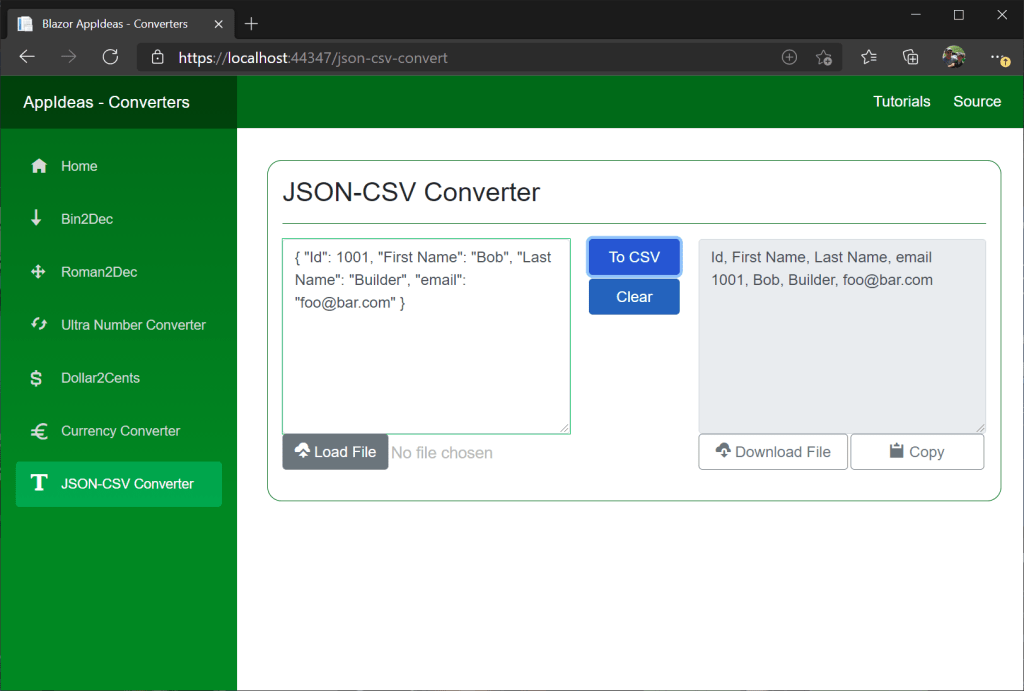
In conclusion, we created the basic JSON to CSV conversion features. This portion of the article is similar to the other converters that we have built earlier in this series. In this article, we learned:
- To use
System.Text.Jsonto parse JSON text into aJsonDocument. - To navigate the
JsonDocumenthierarchy to get at the array, objects, and properties. - To use the
InputTextAreacomponent to edit and display multi-line text.
 DarthPedro's Blog
3 thoughts on “App-Idea 6: JSON to CSV Converter (Part 1)”